
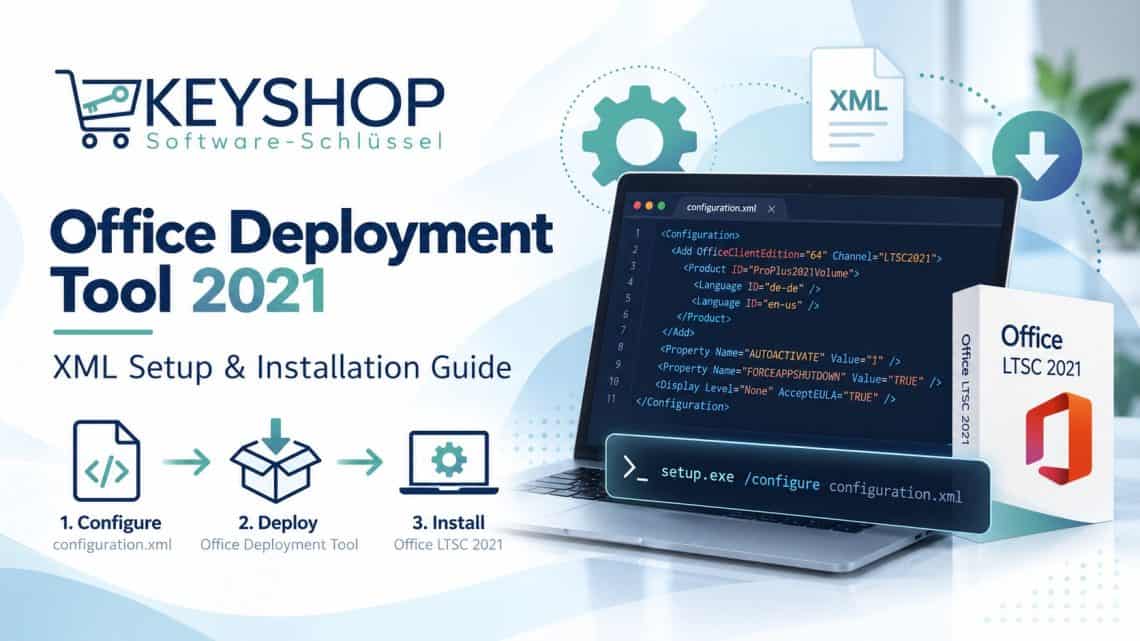
Office Deployment Tool 2021: Download, XML Setup & Installation Guide
10. Dezember 2024Die Office Deployment Tool (ODT) is Microsoft’s free command-line utility for downloading and installing Office. This guide explains how to deploy Office LTSC Professional Plus 2021 using a valid volume license, an XML configuration file, and the official installer.
What is the Office Deployment Tool?
ODT uses the settings in configuration.xml to control the Office product, architecture, languages, installation source and display options. You can install Office from Microsoft’s content delivery network or prepare files for reuse on your own network.
Die Office-Anpassungstool can help generate configuration files; the Office Deployment Tool runs the installation.
Step 1: Download the official Office Deployment Tool
Get the latest ODT from the Microsoft Download Center. Extract it into C:\OfficeDeployment. The extracted files include setup.exe, which runs ODT.
Step 2: Create configuration.xml for Office LTSC 2021
Use the following example for 64-bit Office LTSC Professional Plus 2021 in US English, with volume licensing. Save it as configuration.xml in the same folder as setup.exe.
<Configuration>
  <Add OfficeClientEdition="64" Channel="PerpetualVL2021">
    <Product ID="ProPlus2021Volume">
      <Language ID="en-us" />
    </Product>
  </Add>
  <Updates Enabled="TRUE" />
  <Display Level="Full" AcceptEULA="TRUE" />
</Configuration>
Important: ProPlus2021Volume is the volume-licensed LTSC product ID. Do not substitute ProPlus2021Retail when following volume-license deployment instructions. The sample intentionally contains no activation key.
Step 3: Download Office installation files
Open Command Prompt as Administrator and navigate to the ODT folder:
cd /d C:\OfficeDeploymentTo download the files for a subsequent installation, run:
setup.exe /download configuration.xmlDownload files before deploying to multiple computers or systems with limited network access. ODT can also install directly from Microsoft’s CDN when no local installation source is configured.
Step 4: Install Office LTSC 2021
Close running Office applications, verify that incompatible Office versions have been addressed, and run:
setup.exe /Konfiguration.xml konfigurierenInstallation may take several minutes. Back up important work before changing existing Office software. Avoid forcing running applications to close without informing users.
Step 5: Activate Office 2021 correctly
ODT installs Office, but activation requires an appropriate license. Office LTSC 2021 volume editions support authorized MAK and KMS activation under Microsoft’s licensing terms. Use the activation method supplied with your license; avoid untrusted activators and unauthorized servers.
Need a license? View Microsoft Office 2021 Professional Plus for 3 PCs at Keyshop. Check the product’s license conditions and activation instructions before using the deployment steps above.
Office 2021 deployment settings at a glance
| XML setting | Purpose |
|---|---|
OfficeClientEdition |
32-bit or 64-bit Office |
Channel="PerpetualVL2021" |
Office LTSC 2021 update channel |
Product ID="ProPlus2021Volume" |
Office LTSC Professional Plus 2021 volume edition |
Language ID="en-us" |
US English installation |
Troubleshooting Office Deployment Tool
Setup does not start
Verify that the XML file is in the correct folder and that Command Prompt is running with adequate permissions.
Office files do not download
Check internet connectivity, the installation source, and whether your organization blocks access to Microsoft’s CDN.
Office product is incorrect
Confirm the product ID, update channel and license type. This guide targets Office LTSC Professional Plus 2021 volume licensing.
Another Office installation causes conflicts
Inventory existing Office versions and architectures before removing software. Follow Microsoft’s compatibility and removal guidance.
Frequently asked questions
Is Office Deployment Tool free?
Yes. ODT is free; Office installation and activation still require the appropriate license.
Can Office LTSC 2021 be installed offline?
Yes, after preparing the installation files on an accessible local or network source. Activation requirements still apply.
Is Office Customization Tool required?
No. You can create configuration.xml manually, though Microsoft’s web-based configuration tool can make the process easier.
Looking for Office 2021 Professional Plus?
Explore Office 2021 Professional Plus for 3 PCs at Keyshop. Review the license and activation details before purchase.
Official Microsoft resources
Conclusion: Use a correctly configured Office Deployment Tool XML file, download from trusted Microsoft sources, and activate Office with a valid license.