
Office Customization Tool 2024: Complete Setup Guide
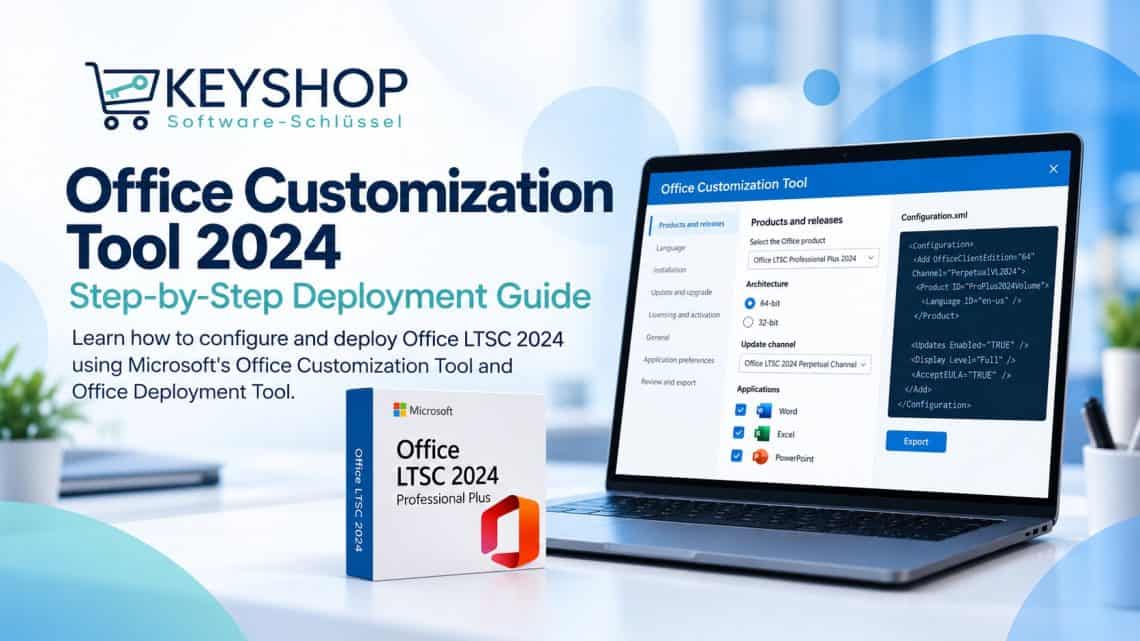
17. Dezember 2024Die Office Customization Tool 2024 (OCT) is Microsoft’s free browser-based tool for preparing customized Office installation settings. If you deploy Office LTSC Professional Plus 2024 with volume licensing, OCT lets you select the product, architecture, languages, apps, and installation options, then export a configuration.xml file for the Office Deployment Tool (ODT).
This step-by-step guide covers configuration, downloading, installation, and legitimate activation methods for Office LTSC 2024.
Office Customization Tool 2024 vs. Office Deployment Tool
- Office Customization Tool (OCT): generates an XML file that describes what and how to install.
- Office Deployment Tool (ODT): uses the XML file to download and install Office.
The configuration tool does not supply a license or activate Office by itself.
Step 1: Open the official Office Customization Tool
Open Microsoft’s Office Customization Tool and create a new deployment configuration. Select the Office LTSC 2024 volume-licensed product covered by your agreement.
Step 2: Choose the Office LTSC 2024 settings
| Setting | Example |
|---|---|
| Produkt | Office LTSC Professional Plus 2024 |
| Architecture | 64-bit |
| Update channel | PerpetualVL2024 |
| Sprache | English (United States), en-us |
| Installation source | Microsoft Office CDN |
Choose the languages and included applications appropriate for your deployment. Check your existing Office installations and system architecture before proceeding.
Step 3: Export configuration.xml
Export the configuration from OCT and save it as configuration.xml. This minimal example targets Office LTSC Professional Plus 2024:
<Configuration>
  <Add OfficeClientEdition="64" Channel="PerpetualVL2024">
    <Product ID="ProPlus2024Volume">
      <Language ID="en-us" />
    </Product>
  </Add>
  <Updates Enabled="TRUE" />
  <Display Level="Full" AcceptEULA="TRUE" />
</Configuration>
This example has no activation key. Use configuration options consistent with your organization’s volume licensing agreement.
Step 4: Download the Office Deployment Tool
Download the latest ODT from the official Microsoft Download Center. Extract it to C:\OfficeDeployment and place configuration.xml beside setup.exe.
Step 5: Download and install Office
Open Command Prompt as Administrator. Navigate to the folder:
cd /d C:\OfficeDeploymentTo download the installation files before installing:
setup.exe /download configuration.xmlTo install using the configuration:
setup.exe /Konfiguration.xml konfigurierenClose running Office applications before installation. The operation may take several minutes depending on your system and network. Back up your work and confirm compatibility before deploying in production.
Step 6: Activate your volume-licensed Office
Installation and activation are separate. If you still need a license, see Office 2024 Professional Plus at Keyshop. Office LTSC 2024 volume editions support authorized MAK (Multiple Activation Key) und KMS (Key Management Service) activation methods according to the organization’s Microsoft volume licensing agreement. Use the method and instructions supplied with your valid license; do not rely on unauthorized KMS servers or modified installers.
Fehlersuche
Installation fails
Verify the product ID (ProPlus2024Volume), channel (PerpetualVL2024), architecture, XML syntax, and available installation source.
An existing Office installation conflicts
Check the architecture and installation technology of any existing Office versions before removing software. Some combinations cannot coexist.
Office installs in the wrong language
Check the Language ID in your XML: en-us is US English; de-de is German.
Office is installed but not activated
Verify that the license corresponds to Office LTSC Professional Plus 2024 and that your organization’s authorized MAK/KMS activation infrastructure is available.
Frequently asked questions
Is Office Customization Tool free?
Yes. The configuration tool is free, but deploying and activating Office requires valid licensing.
Can OCT install Office directly?
No. It generates configuration settings; ODT applies them to download and install Office.
Does configuration.xml include a product key?
Not necessarily. The sample above intentionally excludes a key. Activation must follow your volume licensing terms.
Can Office LTSC 2024 be installed offline?
Yes, when the required installation files have already been downloaded to an accessible source; licensing and activation requirements still apply.
Choosing the right Office LTSC 2024 license
Keyshop offers Microsoft Office 2024 Professional Plus licenses for 3 PCs and installation support. Before purchasing or deploying, confirm the precise edition, number of permitted devices, and activation method shown on the product page. The XML example in this guide is specifically for the volume-licensed LTSC edition.
Ready to install Office LTSC 2024?
Explore Microsoft Office 2024 Professional Plus for 3 PCs. Check the product details and licensing terms before purchasing.
Official Microsoft resources
Summary: Create the XML in OCT, run it through ODT, and activate Office LTSC Professional Plus 2024 with your authorized volume licensing method.